
Recording your games
Press ♪ + L to record what you play, with its sound, and ♪ + L twice quickly for a screenshot. It works in everything PSPExp runs (its games, emulators, apps, the launcher) and in your own PSP games, from a UMD, an ISO on the memory stick or the launcher's PSP list. The videos and pictures are saved on the board, in a folder for each game, ready to watch on the PSP or copy anywhere.
Quick start
In PSPExp:
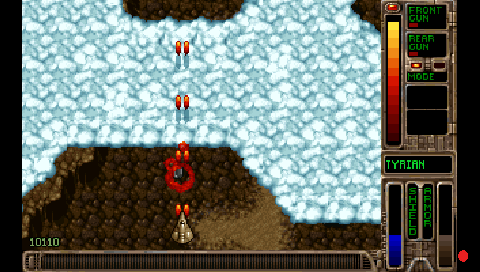
- Press ♪ + L: a red dot appears in the bottom-right corner.
- Play.
- Press ♪ + L again: the dot goes and the video is saved.
In your own PSP games (UMD, ISO, the PSP list), the same, with two things first:
- Once: switch on the PSPExp plugin in Settings > PSP > PSPExp plugin (it needs PRO custom firmware; the plugin).
- Keep the PSP plugged into the board, and wait until the game has started: ♪ + L does nothing in its first seconds (up to 20).
Press ♪ first, then L, briefly: the game does not see the L. ♪ on its own still does what it always did (the sound on and off; in the launcher, the music). The recording starts (or stops) a third of a second after the press, once PSPExp knows a second L is not coming; it counts from the press itself.
Screenshots
Hold ♪ and tap L twice, quickly (within a third of a second): a white dot flashes in the corner and the board saves the screen as a PNG picture, at the PSP's 480x272. It works while recording too: the recording goes on.
Where they go
Into Gallery in the board's home folder (on a Raspberry Pi, /home/pi/Gallery), in a folder for each game, named after it: the PSP game's own title for your PSP games (Gallery/Ace Combat X Skies of Deception), the name in the launcher for PSPExp's (Gallery/OpenTyrian), and PSPExp for the launcher itself. The files are named by kind, date and time, for example recording-2026-10-25-20.24.26.mp4, clip-2026-10-25-20.30.02.mp4 and screenshot-2026-10-25-20.31.15.png. Videos are MP4 files with sound, at the PSP's 480x272, up to 30 frames a second.
Videos made before this version, in Videos/PSPExp, are moved once into Gallery/Earlier (and a Captures folder of the first test versions into Gallery).
The Gallery
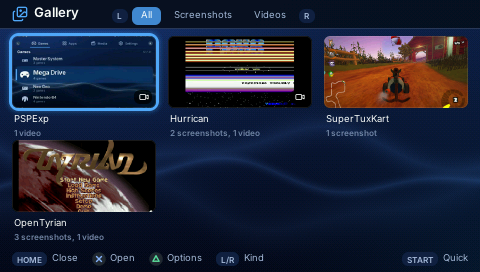
Media > Gallery shows what you captured. Its first page has a tile for each game, with its latest picture and how many screenshots and videos it holds; cross opens a game, with its pictures newest first, four to a row. A video shows its length in the corner (a clock for a clip, a camera for a recording).
| Button | |
|---|---|
| L / R | All, Screenshots, Videos |
| Cross | open a game; show a screenshot full screen (left / right: the previous and next), or play a video (back in the Gallery when it ends, or on circle) |
| Triangle | the options: Details (when, how big, how long, where the file is), Copy to the PSP, Delete (it asks first: the one highlighted, or on the first page a game's, what the tab shows), newest or oldest first |
| START | Quick controls |
| Circle | back to the games |
Copy to the PSP puts screenshots in the memory stick's PICTURE folder and videos in VIDEO, in a folder named after the game, so the PSP's own Photo and Video menus show them, PSPExp closed. Videos the PSP's player cannot play (recordings made before this version) are turned into ones it can on the way, which takes a few seconds each.
- Media has them too: Library > Gallery, and Files on the board.
- Copy one to a computer: copy it to the PSP as above, then connect the PSP to the computer in USB mode as usual; or in Files, show the PSP's memory stick in the other panel and choose triangle > Copy.
The last 30 seconds (Clips)
For the moment you did not plan: turn on Settings > Recording > Clips, and ♪ + R saves the last 30 seconds (a green dot for a second). The board then records all the time in the background, which costs a little (a game can run a few frames a second slower, the board works harder), so it is off at first.
Settings > Recording > Clip length makes a clip 15, 30 (at first) or 60 seconds long.
Quick controls (START, anywhere in PSPExp) has the same: Start recording (or Stop recording while one runs) and, with Clips on, Save the last 30 seconds; the PSP's dot answers as for the buttons. (It needs the PSP updated with this version: Settings > Update PSP.)
| Press | What happens | You see, bottom right |
|---|---|---|
| ♪ + L | a recording starts | a red dot, while it records |
| ♪ + L again | the recording stops and is saved | the red dot goes |
| ♪ + L twice, quickly | a screenshot | a white dot, for a moment (just after, so it is not in the picture) |
| ♪ + R | the last 30 seconds are saved (Clips on; Clip length changes it) | a green dot, for a second |
Quality
Settings > Recording > Quality sets how the videos are kept, clips and recordings alike:
| Quality | About a minute of video | |
|---|---|---|
| High (at first) | 5–17 MB | the picture as the PSP shows it |
| Standard | 3–10 MB | a little softer in busy scenes |
| Small | 2–5 MB | for a small card; busy scenes visibly softer |
The sizes depend on the game: a calm one (Bomberman) makes the small end, a busy shooter (OpenTyrian) the large one. The setting does not change a game's speed.
Good to know
- The dot is only on the PSP's screen, never in the videos.
- In a game's heaviest scenes, the video gets fewer frames for a moment so that the game keeps its own speed.
- Games that run at 60 frames a second are recorded at 30.
- On a GameShell the videos are less smooth than on a Raspberry Pi (its USB is slower); the games run as fast.
- Own PSP games recorded so far: Ace Combat X, Bomberman, Burnout Legends, Castlevania: The Dracula X Chronicles, Crisis Core, Gran Turismo, Jeanne d'Arc, Lunar: Silver Star Harmony, Phantasy Star Portable 2.
If something does not work
- No dot: check that the PSP is plugged into the board. In your own PSP games, check that the PSPExp plugin is On (Settings > PSP) and that the game has started. Keep PSPExp up to date on the board (Apps > Packages) and on the PSP (Settings > Update PSP).
- The dot goes out by itself: the board stopped hearing the PSP. What was recorded is saved; the plugin reconnects after a few seconds, and ♪ + L starts a new recording.
Without a board
A Mac or a Linux computer can do the recording instead: the program is pspexp-plugin-host, built from PSPExp's source (Developing). pspexp-plugin-host -k -s ~/Movies/PSP keeps ♪ clips, recordings and screenshots in that folder, in a folder for each game (add -b 0 for ♪ + L recordings only, -b 15 for 15-second clips, -Q 23 or -Q 28 for the Standard or Small quality); pspexp-plugin-host -o game.mp4 records a whole game into one file.